
Add Candidates
Two ways in: one at a time, or a whole list from a file. Both are on the Candidates page.
First, pick a position
Candidates belong to a position, so choose one from the tabs along the top before you add anybody.
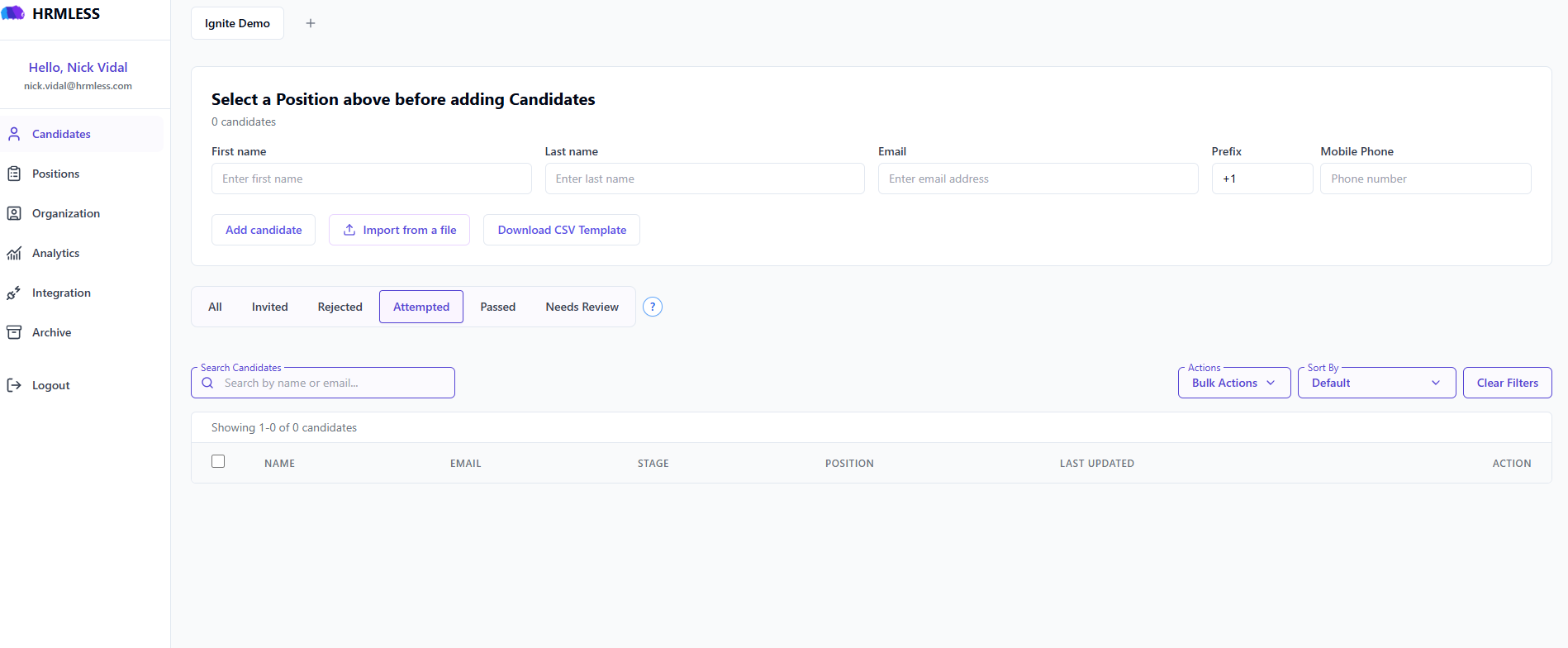
If you see Select a Position above before adding Candidates, that is all this means. The buttons switch on once you pick one.
Add one person
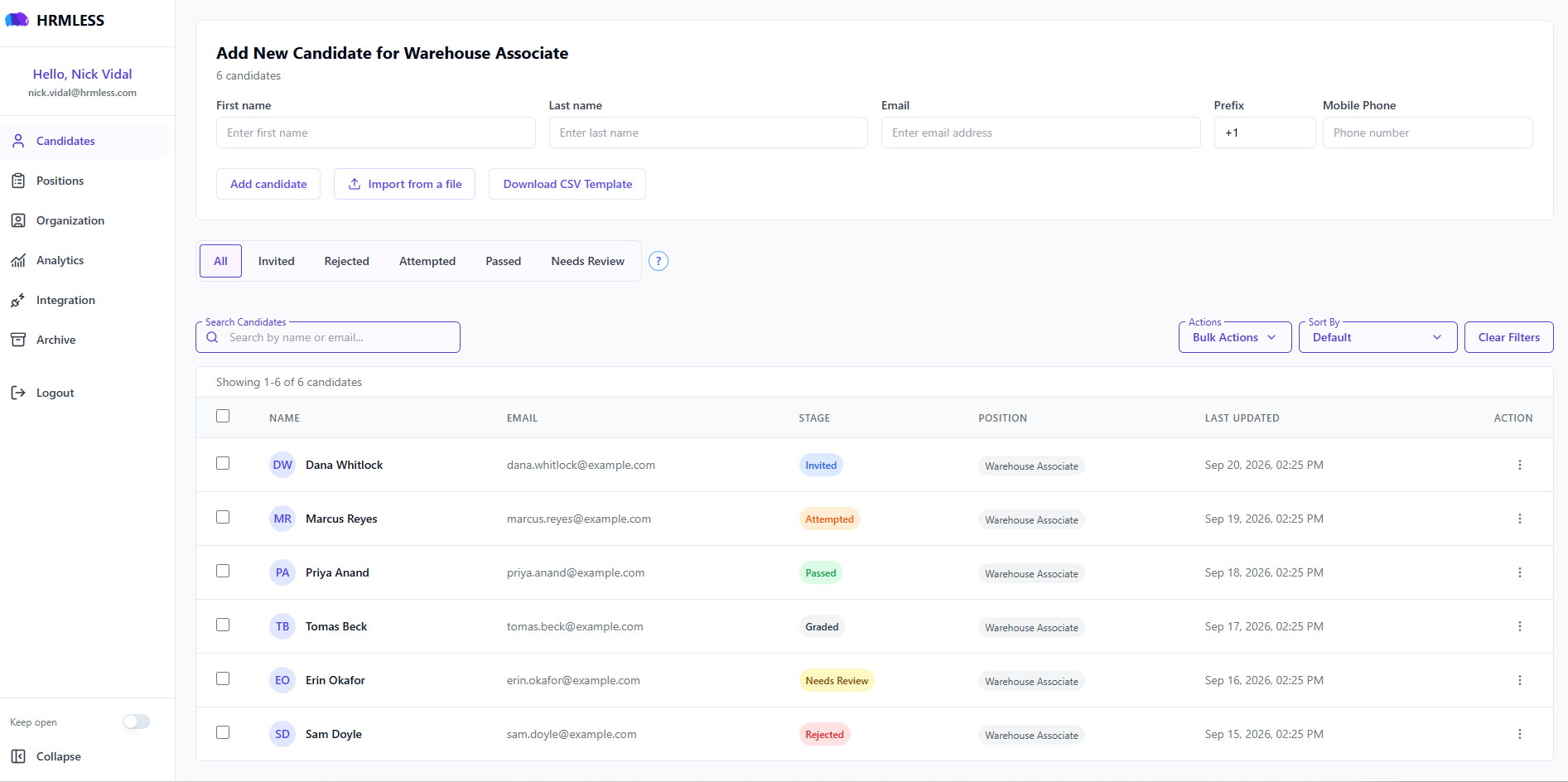
Fill in first name, last name, email and mobile number, then choose Add candidate.
The mobile number has a separate Prefix box — leave it at +1 for US and
Canadian numbers.
Good for a walk-in, a referral, or someone who applied by email.
Add a whole list

- Choose Download CSV Template and open the file you get.
- Put one candidate per row, using the columns already in the template.
- Save it, then choose Import from a file and pick it.
Use the template. It has the exact columns HRMLESS expects, and a file with different headings is the most common reason an import fails.

What happens next — and when
A candidate you have just added shows as Not Invited. Nothing has been sent to them yet.
Invitations go out on a scheduled run, once a day. So somebody added in the afternoon will not hear from you until the following morning.
If you want them contacted now, don't wait for it. Open the ⋮ menu on their row and choose Resend Invites. That sends the text and email straight away, and their stage moves to Invited.
Once invited, HRMLESS:
- sends a text message with a link to their interview
- sends the same thing by email
- reminds them daily if they do not start
Candidates never create an account or set a password — the link is all they need.
Common questions
Can I add the same person to two positions? Yes. They get a separate invitation and a separate result for each one.
What if someone does not get their invitation? Check their stage first. Not Invited means it has not been sent yet — use Resend Invites. If they are already Invited, check the email and mobile number on their record; a typo is the usual cause.
Can I stop the messages going out? Adding somebody does not contact them — they sit at Not Invited until the daily run. If you change your mind before then, edit or delete them from the ⋮ menu on their row.