
Create a Position
A position is a role you are hiring for. It holds the interview questions, the messages candidates get, and the score you want to use as a cut-off.
You need one before you can add anybody.
1. Open Positions
Select Positions in the left-hand menu, then choose Add Position.
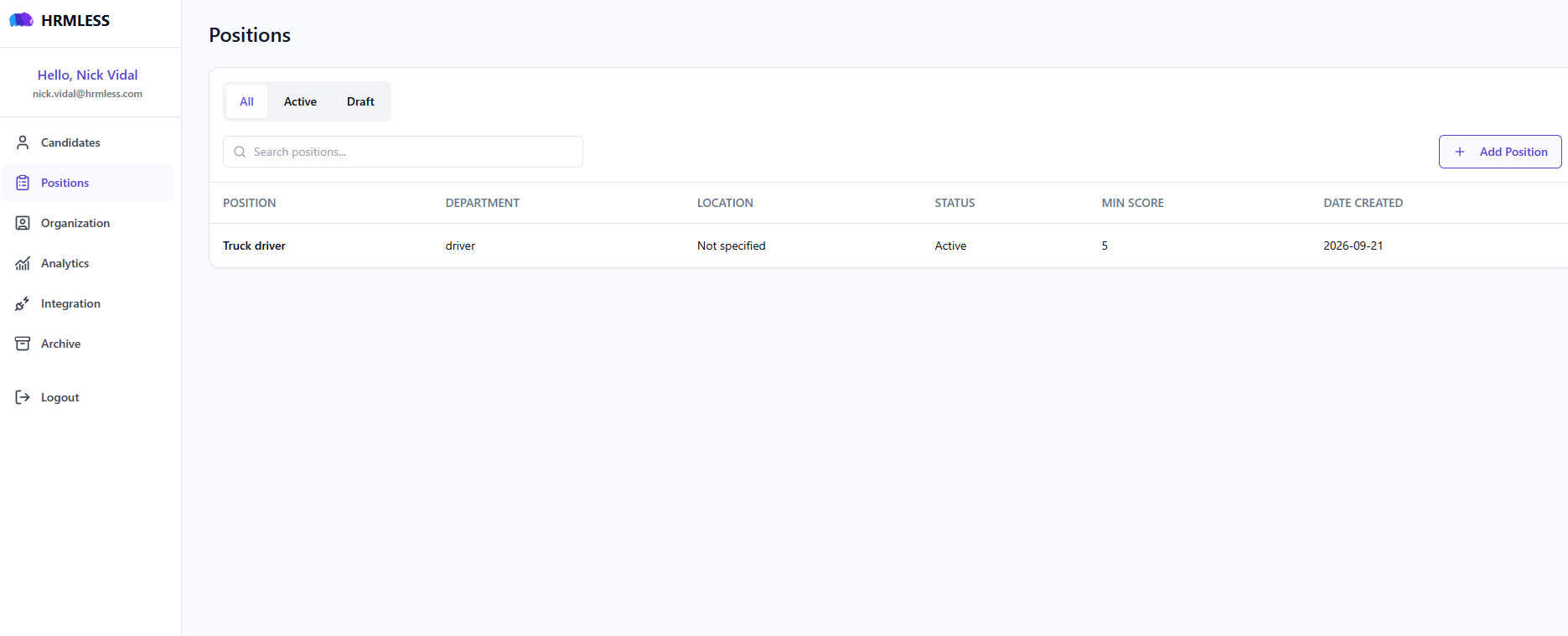
The list has three tabs — All, Active and Draft — and a column for each of Position, Department, Location, Status, Min Score and Date Created.
2. Describe the role
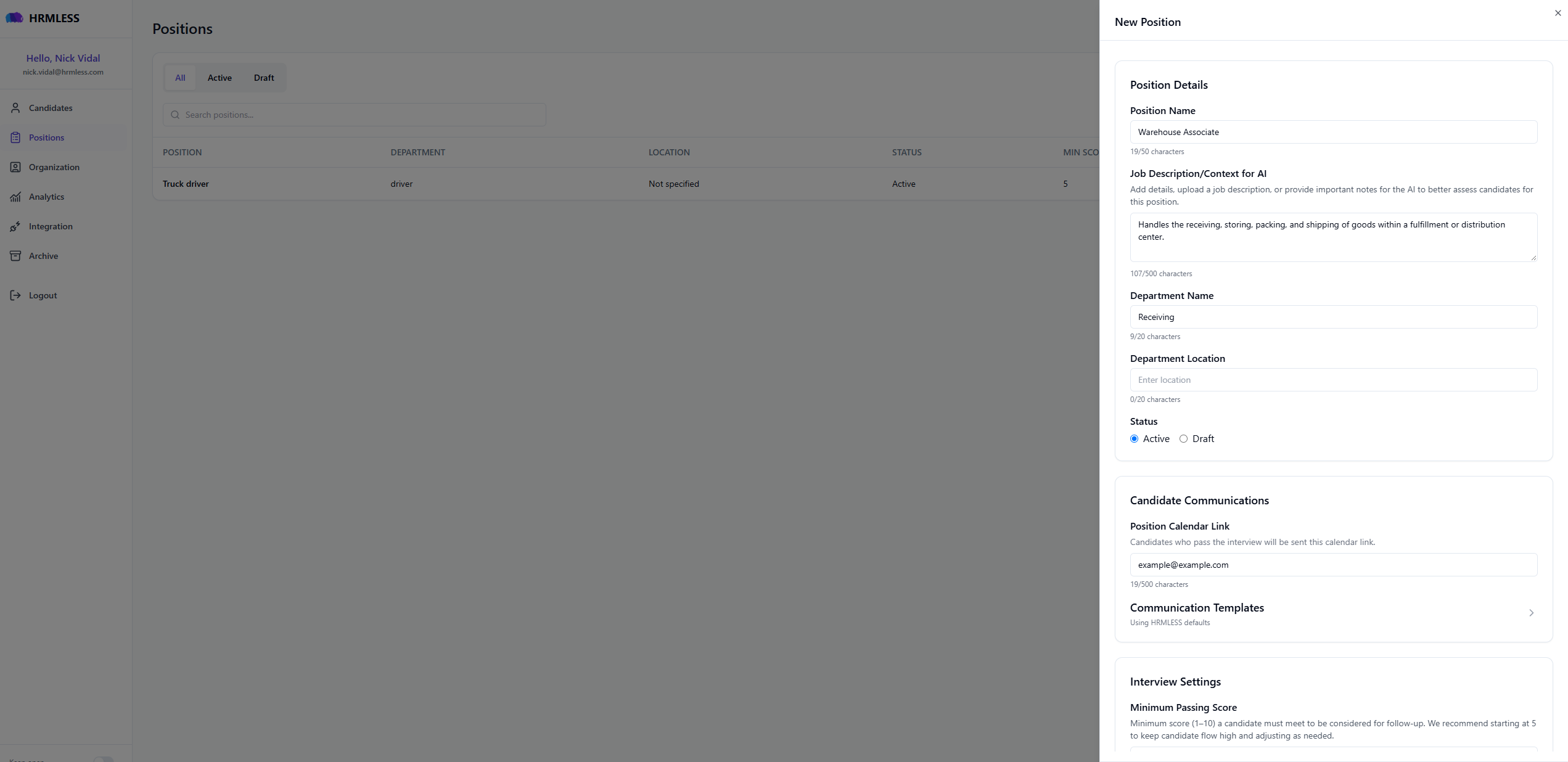
| Field | What to put | Limit |
|---|---|---|
| Position Name | What the role is called | 50 characters |
| Job Description/Context for AI | What the job involves | 500 characters |
| Department Name | e.g. Receiving | 20 characters |
| Department Location | e.g. Denver | 20 characters |
| Status | Active to start interviewing now, Draft to finish later |
Job Description/Context for AI is the field that matters most. It is what the interview uses to judge people. You can paste your job advert, upload a file, or just write a couple of sentences about what the job actually involves — "Handles the receiving, storing, packing, and shipping of goods within a fulfillment or distribution center" is plenty.
Leave Department Location blank and the list will show Not specified. It is optional.
3. Check the messages candidates will get
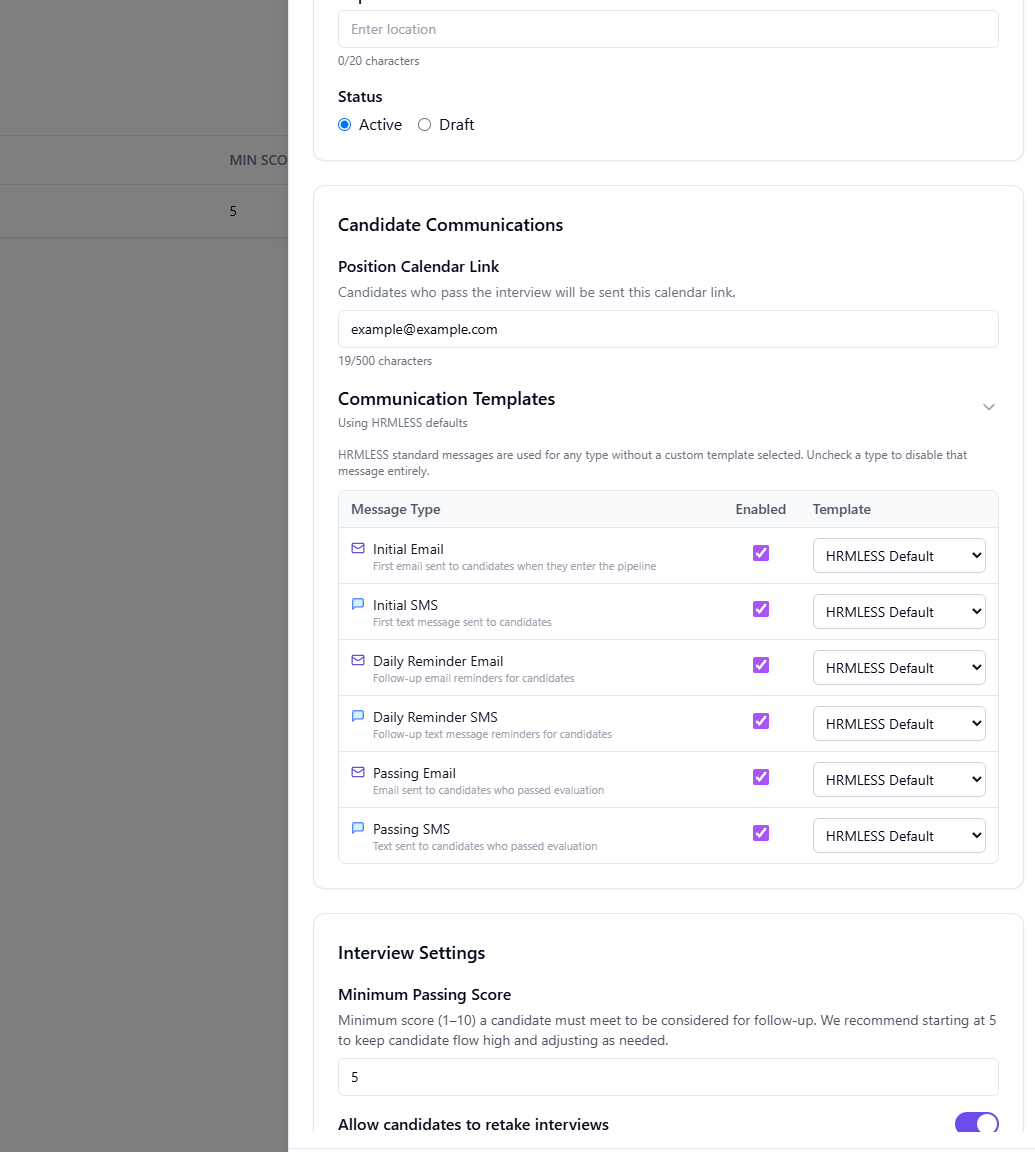
Position Calendar Link — candidates who pass the interview are sent this link. It is not for everybody who applies, only the ones who get through.
Communication Templates says Using HRMLESS defaults until you change something. Open it and you get six messages, each of which you can switch off or point at your own wording:
| Message | When it goes out |
|---|---|
| Initial Email | First email, when a candidate enters the pipeline |
| Initial SMS | First text message to the candidate |
| Daily Reminder Email | Follow-up email reminders |
| Daily Reminder SMS | Follow-up text reminders |
| Passing Email | Email to candidates who passed |
| Passing SMS | Text to candidates who passed |
The reminders are daily. Worth knowing before you switch them on for a big batch — a candidate who has not started will hear from you every day.
Unticking Enabled turns that message off entirely. Leaving the template as HRMLESS Default uses our standard wording, which is fine to start with. See Candidate messages to change it.
4. Set the score, the recording options and the questions
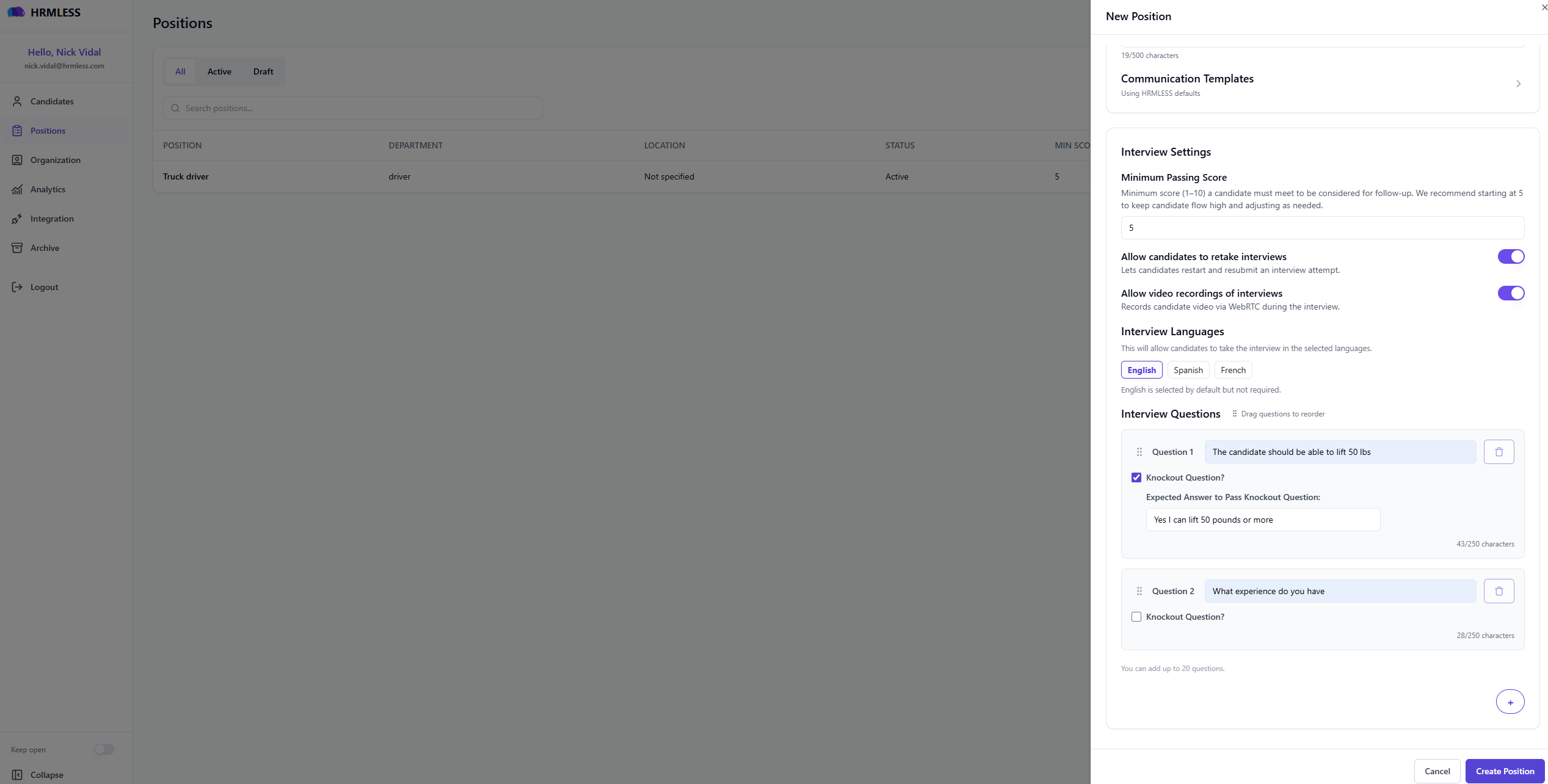
| Setting | What it does |
|---|---|
| Minimum Passing Score | A number from 1 to 10. Start at 5 — that is what HRMLESS suggests, and it keeps candidate flow high while you see what scores look like for your roles. Anyone below it is flagged for you, not rejected. |
| Allow candidates to retake interviews | On by default. Lets someone restart if their call drops. Leave it on. |
| Allow video recordings of interviews | On by default. Records candidate video via WebRTC during the interview. See below. |
| Interview Languages | English, Spanish and French. English is selected by default but is not required. |
Writing the questions
You start with two empty questions and can add up to 20. Each holds 250 characters, with a counter under the box. Drag the handles to reorder them.
Four to six good questions is plenty. Twenty is the limit, not a target — a longer interview means more people give up part-way.
Ask open questions. "Tell me about a shift where everything went wrong" gives the interview something to follow up on. "Do you have experience?" does not.
A question over 250 characters turns the box red and blocks saving. If one needs more room than that, it is usually two questions.
About video recording
Video is recorded by default. Turning it off does not change anyone's score — the score comes from what the candidate said, not how they looked. With it off, you still get the audio and the full transcript, and the candidate's page shows No Video Available.
If your company has a policy about recording people, set this deliberately rather than leaving the default.
5. Add a hard requirement, if you have one
Tick Knockout Question? under a question to make it a requirement rather than something scored — lifting a certain weight, holding a licence, working particular shifts.
You then fill in Expected Answer to Pass Knockout Question — what a passing answer sounds like, e.g. "Yes I can lift 50 pounds or more".
Failing one does not reject anybody. It flags them for you to look at. See Knockout questions.
6. Choose Create Position
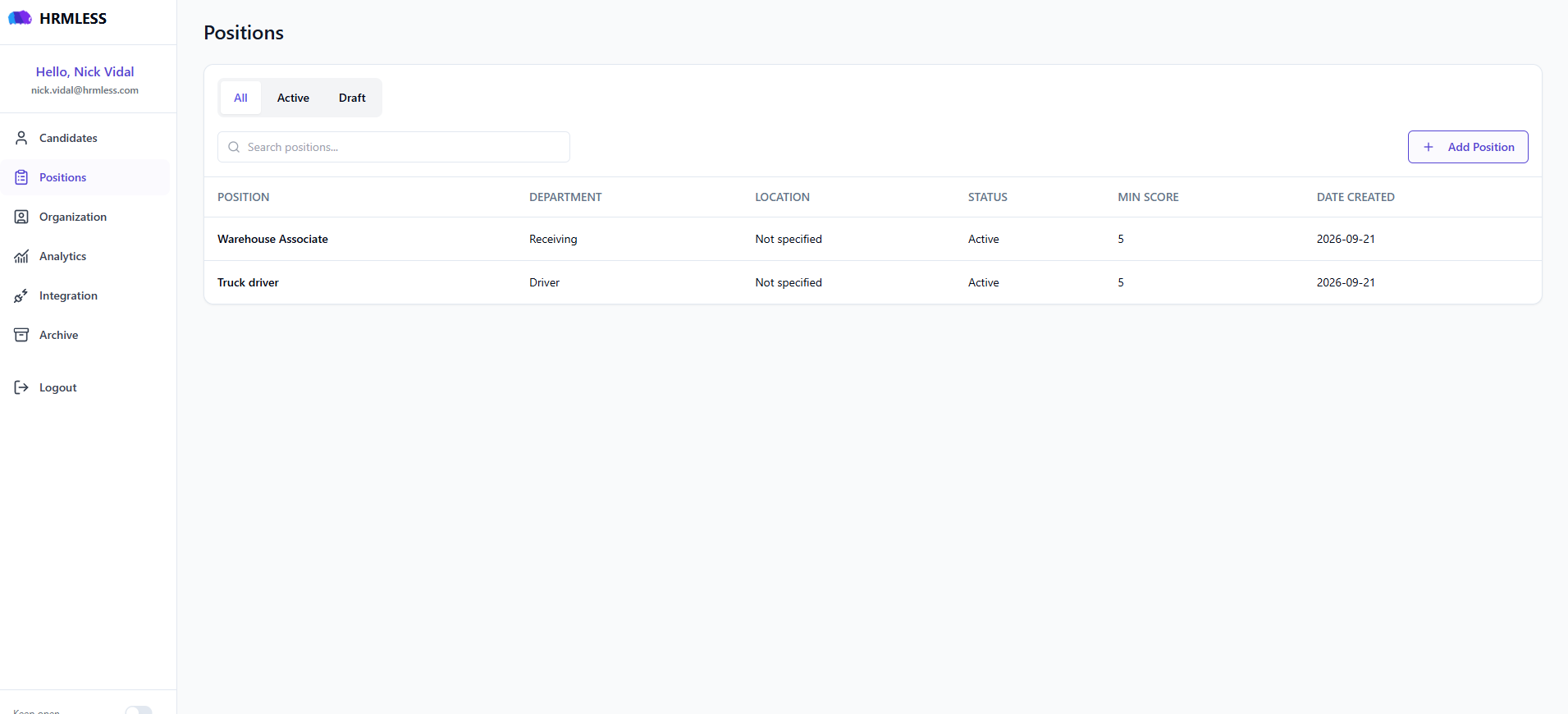
Your position appears in the list, and you can now add candidates to it.
Editing it later
Click a row to open the position. That view is read-only — use the edit option to change anything.
Changes apply to people invited from that point on. Anyone already interviewed was assessed against the old version, so if you want a fair comparison across a group, settle the questions before you start inviting.
Common questions
Can I change the questions once people have started? Yes, but everyone already interviewed was assessed on the old questions. For a like-for-like comparison, finish the questions first.
What is Draft for? Saving a position without putting it to work — while you are still writing the questions, or for a role that is approved but not open yet.
What happens to people below the minimum score? They are flagged, not rejected. HRMLESS never rejects anyone on its own.
Do I have to fill in the calendar link? No. It only matters if you want candidates who pass to be able to book time with you.